
Firstly I need to start by saying that it is not currently supported to modify the standard reports included in the core Management Packs. With good due diligence you should be able to prevent any accidental damage to the standard reports. The reason I mention the support factor is you would not be able to receive assistance from the Microsoft support team to achieve this. So make sure you use good development, test, and release processes for any of this work.
Now that has been established lets talk about why we might want to do this. Typically I have always created new custom reports from a SQL query that I already had or found online and I wanted to make the data either 1) easily consumed in a visual way 2) able to be automatically distributed. I was however faced with a very good reason by a customer recently and that was:
Now you could argue that it isn't much effort to scroll a page or two, but isn't the objective of a report to display data which is easy to consume. It is important to note that the Report Parameters being mention are part of a collapsible section which works in the report viewer, but when it is exported to PDF, Excel, etc it looses that dynamic capability and shows the values expanded.... hence the pages of data to scroll.
Another situation I can think of where this sort of modification might be needed is when you want to modify the way the data is visualized or add another visualization to the existing report. Now you can add parts from other reports into your report via linked reports.... but sometimes that just doesn't cut if for your needs.
Ok so onto the steps. I have broken the total process into the following phases, but have continued the step numbers throughout so you can follow where you are up to in the overall process.
Part 1: Report Design/Creation
1. Browse to the Reports web service
2. The reports will be stored in folders that represent the view you see under the Ops Console Reporting. Locate the folder containing the report you wish to modify. In our example we will use the "Microsoft ODR Report Library\Most Common Alerts". This report is found in the "ODR" folder within SSRS.

3. Something to be mindful of is that Linked Reports are used frequently within SCOM reporting. This means you may find the source report you are trying to edit is actually located in a different location. To identify if this is the case select "Manage" from the report menu.

Then within the details look for the "Link to" path. If this is present then you will need to locate that source report for the next steps. In my example the source report I need to locate is /Microsoft.SystemCenter.DataWarehouse.Report.Library/Microsoft.SystemCenter.DataWarehouse.Report.MostCommonAlerts.

4. Once you locate the report you wish to modify, download a copy of the report definition file (.rdl). There are two files for each SCOM report, we will explain the second file (.rpdl) later during Part 3. Download the .rdl file using the report menu.


5. Rename the file you just downloaded to a suitable name. This will be the name which eventually is displayed within SCOM, therefore following your organizations naming conventions is recommended (e.g. prefix the file name with your company name etc)
6. Open SQL Server Data Tools (aka Visual Studio), create a New Project of the type Report Server Project.

TIP: For simplified report development you can just use Report Builder, but due to the complexities and objects in the built-in reports I recommend using SQL Server Data Tools (aka Visual Studio with the Report Services templates).
7. From solution explorer right click Reports and select "Add > Existing Item"

8. Browse to the report file you downloaded and add it into your project. Open the report for editing.
9. Make the required change to the report layout. For our example we will remove part of the table which outputs the targeted objects, but the exact steps here will vary.

I've found in my case that this also left a blank space from the parent table, so I had to delete that row as well.
This whole step is all about report design and that skill is something far deeper than what I can go into in this blog, plus there are plenty of other blogs that cover the various techniques for designing report so I will stick to what you need to know for SCOM specifically.
10. Now that you have the layout of the report complete. You may find that if the report included any charts then there may be an area in the report showing "The custom report item type Enterprise.ManagementChartControl is not installed" such as in the following image.

This is because the SCOM reports are built with a custom charting control. While there are some blogs online that suggest methods for adding support for this control to your project, none of the information I found allowed modification to the chart. Therefore the easiest way I found to fix this is to replace the custom control with the standard Chart control which can be done with the following steps.
11. Now proceed to make all other changes to the report as you require. You can remove other components or add new tables/charts with new data sets too. Just look at the way the existing components/reports are created and follow that configuration. As I mentioned this is largely a Report Design process which is not unique to this topic so I won't go into any more detail here.
12. Once you have made all the changes you require to the report layout, save the .rdl file.
Now there is another critical step here which is to configure the Report Parameters which is covered in Part 3 and I typically perform that step now, however for this article we will come back and fix that after deploying the report so that we can demonstrate why it is required showing why. In the future though you may choose to perform Part 3 here and deploy both the RDL and RPDL files together.
Part 2: Deploying Your Report
14. Locate the .rdl file you just created in SQL Data Tools (aka Visual Studio).
15. From Internet Explorer, browse to the Reports web service as we did in the very first steps.
16. If you haven't already done so create a unique folder for your custom reports. This should follow a good naming convention. To do this from the Home path of the Reports server, click New Folder and follow the wizard.


17. Navigate to this new folder in the ReportServer
18. From the menu select Upload File

19. Navigate to the .rdl file you created and upload it to the report server. Correct the name if required, however if you have followed a good naming convention earlier then this should not be required.

20. Before you can view the report we must associate it with the Shared Data Source, otherwise you will receive this error:
The report server cannot process the report or shared dataset. The shared data source 'DataWarehouseMain' for the report server or SharePoint site is not valid. Browse to the server or site and select a shared data source. (rsInvalidDataSourceReference)
To correct this select Manage from the report menu (suggest using Detail View for this)

21. Select Data Sources and scroll down to the definition of DataWarehouseMain.

22. Switch to the Operations Manager Console. Select the Reports in the Wunderbar (left menu). Locate and select the custom report folder you created to hold your modified reports.

TIP: If you do not see the report folder you created, try Refreshing the Reporting view as I have found the console cache occasionally prevents it from immediately displaying.
23. You can now select your report and perform common actions on it like Saving to favorites, scheduling, etc
Part 3: Fixing the Report Parameters
You may notice that the when you view your report the report parameters are not as interactive as other SCOM reports. The other thing you may notice is that if you modified an existing report it all of a sudden includes all these unexpected parameters (particularly if you had to locate a Linked report). For example the following is the view of our modified Most Common Alerts report:

The reason for this is that SCOM uses custom report parameter components which are built into the SCOM Report Viewer control. Now the report is usable at this stage, but you need to know the precise values which are expected by the particular parameters for it to display accurate data. The following steps will outline how to correct this and configure the parameters for the best user experience.
24. Earlier in Part 1 step 4 we mentioned a .rpdl file, we now must locate that file for the source report, or if you are building a report from scratch then a report with a similar parameter values (note you would need to have configured the queries the same way too during your design of a new report for this to work but that is outside of the scope of this article).
TIP: This rpdl file contains the definition for the Report Parameter Definition Language. It is this file which maps the report parameter to a custom control within SCOM.
25. You can edit the file in your favorite XML editor, however if you have based your report on an existing report such as in the case of this article, and you didn't make any changes to the Parameters during report design, then you shouldn't need to make any changes.
The following screen shots shows the layout of the unmodified MostCommonAlerts parameter definition file. You can see here how it binds the parameters by name to particular controls within the SCOM report engine.

26. Upload the RPDL file to the Report Server in the same location as your custom report (.RDL) from Part 2 of these instructions.

27. Switch back to your Operations Manager Console and reopen the report. This time, if your file is correctly defined, you will be presented with the typical SCOM Report Parameter controls.


NOTE: These controls only work within the SCOM report viewer, they will not display when viewing the report natively in SSRS Report Server (even if you can work around the authentication prompt! ).
28. Make any final changes to the report parameter definition file (.RPDL) to configure the parameters as required. It is through this file which you should be configuring parameters to be visible (by removing their definition), however you may need to adjust the parameter configuration within your report as well depending on the changes you make.
Reference Material
The following are some of the articles I used while figuring out this process.
Report parameters block
http://blogs.msdn.com/b/eugenebykov/archive/2007/06/15/report-parameters-block.aspx
How to change built-in OpsMgr performance reports to show data in a timeline - Part2
http://blogs.technet.com/b/daniels_opsmgr_blog/archive/2011/01/27/how-to-change-built-in-opsmgr-performance-reports-to-show-as-a-timeline-part2.aspx
Using Linked Reports in SCOM to Create Custom Availability Reports for Specified Monitors
http://blogs.technet.com/b/emreguclu/archive/2011/10/13/using-linked-reports-in-scom-to-create-custom-availability-reports-for-specified-monitors.aspx
Conclusion
That's it, you have now modified a built in report from SCOM. Most of the practices used in this guide could be applied to custom reports as well to further enhance their usage within your environment (such as the RPDL).
Happy report writing and please send me feedback if you use this guide or come across anything further which may need to be explored during this process.
Legal Stuff: As always the contents of this blog is provided “as-is”. The information, opinions and views expressed are those of the author and do not necessarily state or reflect those of any other company with affiliation to the products discussed. This includes any URLs or Tools. The author does not accept any responsibility from the use of the information or tools mentioned within this blog, and recommends adequate evaluation against your own requirements to measure suitability.
Now that has been established lets talk about why we might want to do this. Typically I have always created new custom reports from a SQL query that I already had or found online and I wanted to make the data either 1) easily consumed in a visual way 2) able to be automatically distributed. I was however faced with a very good reason by a customer recently and that was:
"Can we modify the standard built-in reports like Most Common Alerts so that the Report Parameters section is not included as it will contain a long list of Management Packs, or move that list to the end of the report. By having the long list of Management Packs at the start of the report we find report consumers (i.e. managers) were not seeing the value as they could not see the data as soon as they opened the report and had to scroll to page 3 or 4."
Now you could argue that it isn't much effort to scroll a page or two, but isn't the objective of a report to display data which is easy to consume. It is important to note that the Report Parameters being mention are part of a collapsible section which works in the report viewer, but when it is exported to PDF, Excel, etc it looses that dynamic capability and shows the values expanded.... hence the pages of data to scroll.
Another situation I can think of where this sort of modification might be needed is when you want to modify the way the data is visualized or add another visualization to the existing report. Now you can add parts from other reports into your report via linked reports.... but sometimes that just doesn't cut if for your needs.
Ok so onto the steps. I have broken the total process into the following phases, but have continued the step numbers throughout so you can follow where you are up to in the overall process.
Part 1: Designing/Creating Your Report
Part 2: Deploying Your Report
Part 3: Fixing the Report Parameters
Part 1: Report Design/Creation
1. Browse to the Reports web service
a) If you don't know the URL to your SSRS instance, in SCOM open Administration, Settings and the Reporting dialogue

2. The reports will be stored in folders that represent the view you see under the Ops Console Reporting. Locate the folder containing the report you wish to modify. In our example we will use the "Microsoft ODR Report Library\Most Common Alerts". This report is found in the "ODR" folder within SSRS.
3. Something to be mindful of is that Linked Reports are used frequently within SCOM reporting. This means you may find the source report you are trying to edit is actually located in a different location. To identify if this is the case select "Manage" from the report menu.
Then within the details look for the "Link to" path. If this is present then you will need to locate that source report for the next steps. In my example the source report I need to locate is /Microsoft.SystemCenter.DataWarehouse.Report.Library/Microsoft.SystemCenter.DataWarehouse.Report.MostCommonAlerts.
4. Once you locate the report you wish to modify, download a copy of the report definition file (.rdl). There are two files for each SCOM report, we will explain the second file (.rpdl) later during Part 3. Download the .rdl file using the report menu.
5. Rename the file you just downloaded to a suitable name. This will be the name which eventually is displayed within SCOM, therefore following your organizations naming conventions is recommended (e.g. prefix the file name with your company name etc)
6. Open SQL Server Data Tools (aka Visual Studio), create a New Project of the type Report Server Project.
TIP: For simplified report development you can just use Report Builder, but due to the complexities and objects in the built-in reports I recommend using SQL Server Data Tools (aka Visual Studio with the Report Services templates).
7. From solution explorer right click Reports and select "Add > Existing Item"
8. Browse to the report file you downloaded and add it into your project. Open the report for editing.
9. Make the required change to the report layout. For our example we will remove part of the table which outputs the targeted objects, but the exact steps here will vary.
I've found in my case that this also left a blank space from the parent table, so I had to delete that row as well.
This whole step is all about report design and that skill is something far deeper than what I can go into in this blog, plus there are plenty of other blogs that cover the various techniques for designing report so I will stick to what you need to know for SCOM specifically.
10. Now that you have the layout of the report complete. You may find that if the report included any charts then there may be an area in the report showing "The custom report item type Enterprise.ManagementChartControl is not installed" such as in the following image.
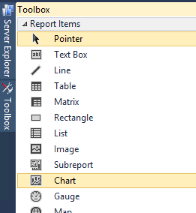
This is because the SCOM reports are built with a custom charting control. While there are some blogs online that suggest methods for adding support for this control to your project, none of the information I found allowed modification to the chart. Therefore the easiest way I found to fix this is to replace the custom control with the standard Chart control which can be done with the following steps.
a) Delete the Enterprise.ManagementChartControl
b) Add a Chart to the report from the toolbox
c) Edit the chart properties and associate it with the appropriate data set.
d) Make further adjustments to the Series and Values as required for your purpose.

11. Now proceed to make all other changes to the report as you require. You can remove other components or add new tables/charts with new data sets too. Just look at the way the existing components/reports are created and follow that configuration. As I mentioned this is largely a Report Design process which is not unique to this topic so I won't go into any more detail here.
12. Once you have made all the changes you require to the report layout, save the .rdl file.
Now there is another critical step here which is to configure the Report Parameters which is covered in Part 3 and I typically perform that step now, however for this article we will come back and fix that after deploying the report so that we can demonstrate why it is required showing why. In the future though you may choose to perform Part 3 here and deploy both the RDL and RPDL files together.
Part 2: Deploying Your Report
14. Locate the .rdl file you just created in SQL Data Tools (aka Visual Studio).
15. From Internet Explorer, browse to the Reports web service as we did in the very first steps.
16. If you haven't already done so create a unique folder for your custom reports. This should follow a good naming convention. To do this from the Home path of the Reports server, click New Folder and follow the wizard.
17. Navigate to this new folder in the ReportServer
18. From the menu select Upload File
19. Navigate to the .rdl file you created and upload it to the report server. Correct the name if required, however if you have followed a good naming convention earlier then this should not be required.
20. Before you can view the report we must associate it with the Shared Data Source, otherwise you will receive this error:
The report server cannot process the report or shared dataset. The shared data source 'DataWarehouseMain' for the report server or SharePoint site is not valid. Browse to the server or site and select a shared data source. (rsInvalidDataSourceReference)
To correct this select Manage from the report menu (suggest using Detail View for this)
21. Select Data Sources and scroll down to the definition of DataWarehouseMain.
a) Check if it reports that the reference is no longer valid. If it does then click the Browse button
b) Select the Data Warehouse Main data source in the root of the report server. Click OK.
c) When returned to the Data Sources configuration for your report, scroll to the bottom of the screen and select Apply.
d) Your report is now associated with the data source and ready to display data to the user

22. Switch to the Operations Manager Console. Select the Reports in the Wunderbar (left menu). Locate and select the custom report folder you created to hold your modified reports.
TIP: If you do not see the report folder you created, try Refreshing the Reporting view as I have found the console cache occasionally prevents it from immediately displaying.
23. You can now select your report and perform common actions on it like Saving to favorites, scheduling, etc
Part 3: Fixing the Report Parameters
You may notice that the when you view your report the report parameters are not as interactive as other SCOM reports. The other thing you may notice is that if you modified an existing report it all of a sudden includes all these unexpected parameters (particularly if you had to locate a Linked report). For example the following is the view of our modified Most Common Alerts report:
The reason for this is that SCOM uses custom report parameter components which are built into the SCOM Report Viewer control. Now the report is usable at this stage, but you need to know the precise values which are expected by the particular parameters for it to display accurate data. The following steps will outline how to correct this and configure the parameters for the best user experience.
24. Earlier in Part 1 step 4 we mentioned a .rpdl file, we now must locate that file for the source report, or if you are building a report from scratch then a report with a similar parameter values (note you would need to have configured the queries the same way too during your design of a new report for this to work but that is outside of the scope of this article).
a) So in our case we navigate back to the path in Step 4 and download the .rpdl file.
b) Make sure you save it with the same name as your report (e.g. FourthCoffee.Report.MostCommonAlerts.rpdl).


TIP: This rpdl file contains the definition for the Report Parameter Definition Language. It is this file which maps the report parameter to a custom control within SCOM.
25. You can edit the file in your favorite XML editor, however if you have based your report on an existing report such as in the case of this article, and you didn't make any changes to the Parameters during report design, then you shouldn't need to make any changes.
The following screen shots shows the layout of the unmodified MostCommonAlerts parameter definition file. You can see here how it binds the parameters by name to particular controls within the SCOM report engine.
26. Upload the RPDL file to the Report Server in the same location as your custom report (.RDL) from Part 2 of these instructions.
27. Switch back to your Operations Manager Console and reopen the report. This time, if your file is correctly defined, you will be presented with the typical SCOM Report Parameter controls.
NOTE: These controls only work within the SCOM report viewer, they will not display when viewing the report natively in SSRS Report Server (even if you can work around the authentication prompt! ).
28. Make any final changes to the report parameter definition file (.RPDL) to configure the parameters as required. It is through this file which you should be configuring parameters to be visible (by removing their definition), however you may need to adjust the parameter configuration within your report as well depending on the changes you make.
Reference Material
The following are some of the articles I used while figuring out this process.
Report parameters block
http://blogs.msdn.com/b/eugenebykov/archive/2007/06/15/report-parameters-block.aspx
How to change built-in OpsMgr performance reports to show data in a timeline - Part2
http://blogs.technet.com/b/daniels_opsmgr_blog/archive/2011/01/27/how-to-change-built-in-opsmgr-performance-reports-to-show-as-a-timeline-part2.aspx
Using Linked Reports in SCOM to Create Custom Availability Reports for Specified Monitors
http://blogs.technet.com/b/emreguclu/archive/2011/10/13/using-linked-reports-in-scom-to-create-custom-availability-reports-for-specified-monitors.aspx
Conclusion
That's it, you have now modified a built in report from SCOM. Most of the practices used in this guide could be applied to custom reports as well to further enhance their usage within your environment (such as the RPDL).
Happy report writing and please send me feedback if you use this guide or come across anything further which may need to be explored during this process.
Legal Stuff: As always the contents of this blog is provided “as-is”. The information, opinions and views expressed are those of the author and do not necessarily state or reflect those of any other company with affiliation to the products discussed. This includes any URLs or Tools. The author does not accept any responsibility from the use of the information or tools mentioned within this blog, and recommends adequate evaluation against your own requirements to measure suitability.


